Block Editor Basics: Adding, Moving, and Deleting Blocks
Modern WordPress uses the block editor
Modern WordPress uses the block editor (sometimes called Gutenberg). Instead of one big text box, your content is built from individual blocks – paragraphs, headings, images, lists, and more.
Adding a block
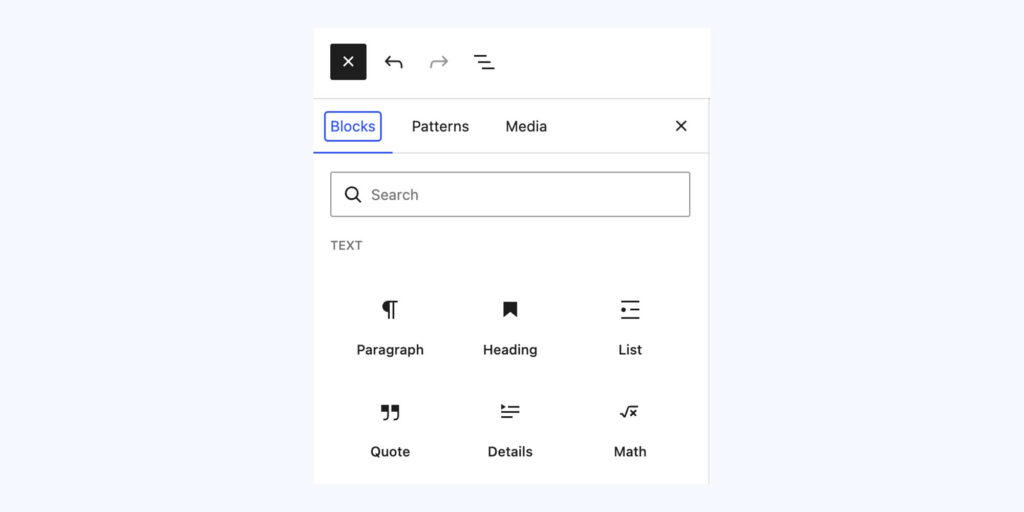
Click the + icon (top-left of the editor, or the one that appears between existing blocks) and choose a block type, or start typing and use / followed by the block name as a shortcut, e.g. typing /heading.
Moving a block
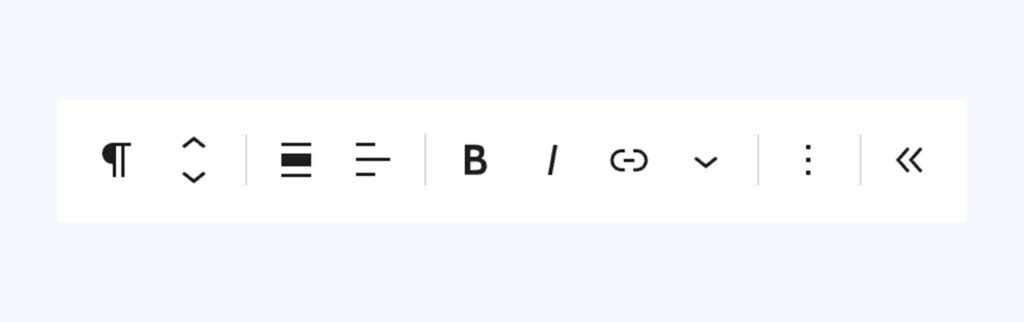
Click a block to select it, then use the up/down arrow icons that appear on the left, or drag it using the six-dot handle.
Deleting a block
Select the block, click the three-dot menu in its toolbar, and choose “Remove”. Or select it and press Backspace when nothing is being edited inside it.
Duplicating a block
Handy when you want to repeat a similar layout – select the block, open the three-dot menu, and choose “Duplicate”.
Tip: Every change is autosaved as a draft, and you can always step back through your edit history – see the guide on Undo, Redo and Revisions.
Conversation
Leave a Reply
You must be logged in to post a comment.
Thanks for the feedback. Let us know what was missing and we will improve this page.
Thank you for your feedback.